msprof-analyze Quick Start
1. Overview
MindStudio Profiler Analyze (msprof-analyze) is an automated analysis tool for profile data generated by Ascend AI Processors. This tutorial uses a complete performance diagnosis as an example to introduce the basic workflow of environment preparation, profile data collection, Advisor analysis, and report viewing.
Experience Map (Core operations take approximately 10 minutes)
| Step | Stage | Core Tool | Reference Operation Duration | Recommended Learning Time |
|---|---|---|---|---|
| 1 | Environment preparation | CANN container environment | 5 minutes | 5 minutes |
| 2 | Profile data collection | Ascend PyTorch Profiler | 2 minutes | 10 minutes |
| 3 | Automated analysis and report viewing | msprof-analyze advisor |
3 minutes | 10 minutes |
2. Procedure
2.1 Environment Setup (Mandatory)
🛑 This section is mandatory. Skipping this section may cause multiple subsequent operations to fail.
This tutorial supports only execution in a standardized CANN container. Direct execution on bare-metal servers, virtual machines, or other non-standard container environments is not supported.
2.1.1 Prerequisites
Before starting, confirm that the server meets the following requirements:
| Item | Requirement | Verification Method |
|---|---|---|
| Hardware | A Linux server equipped with at least one NPU, with the driver and firmware installed | Run npu-smi info and confirm that the NPU is operating normally |
| Container runtime | Docker installed and running (version ≥ 18.0 recommended) | Run docker ps; no error indicates that the service has started normally |
| Script execution | Python 3 installed on the host | Run python3 -V on the host; displayed version information indicates that it is installed |
| Network communication | curl installed (any version) |
Run curl -V; displayed version information indicates that it is installed |
👉 After confirming that the prerequisites are met, if the environment has public network access, all subsequent commands in this chapter can be executed directly by Copy/Paste without manual input or concatenation, avoiding command execution failures caused by input errors.
2.1.2 Host: Automatically Identifying the NPU and Configuring Image Environment Variables
Run the following command on the host. This command performs three operations: (1) obtains the NPU PCI ID → (2) matches the image version → (3) sets the environment variables for use in subsequent steps.
source /dev/stdin <<< "$(dev_id=$(lspci -n -D | grep -o '19e5:d[0-9a-f]\{3\}' | head -n1 | cut -d: -f2); case "$dev_id" in 'd500' ) echo "export MY_STUDY_VAR_CANN_IMAGE=swr.cn-south-1.myhuaweicloud.com/ascendhub/cann:9.0.0-310p-openeuler24.03-py3.11-devel; export MY_CHIP_NAME=310P";; 'd802' ) echo "export MY_STUDY_VAR_CANN_IMAGE=swr.cn-south-1.myhuaweicloud.com/ascendhub/cann:9.0.0-910b-openeuler24.03-py3.11-devel; export MY_CHIP_NAME=910B";; 'd803' ) echo "export MY_STUDY_VAR_CANN_IMAGE=swr.cn-south-1.myhuaweicloud.com/ascendhub/cann:9.0.0-a3-openeuler24.03-py3.11-devel; export MY_CHIP_NAME=A3";; 'd806' ) echo "export MY_STUDY_VAR_CANN_IMAGE=swr.cn-south-1.myhuaweicloud.com/ascendhub/cann:9.0.0-950-openeuler24.03-py3.11-devel; export MY_CHIP_NAME=950";; * ) echo "unset MY_STUDY_VAR_CANN_IMAGE MY_CHIP_NAME; echo >&2; echo -e '\033[31m[FAIL] Get device ID: $dev_id. Learning is not supported in the current environment.\033[0m' >&2";; esac)"
[ -n "$MY_STUDY_VAR_CANN_IMAGE" ] && echo -e "\e[32m[PASS] Successfully identified chip [$MY_CHIP_NAME] and auto-selected image:\n    $MY_STUDY_VAR_CANN_IMAGE\e[0m"
[!NOTE]
How the Command Works The command obtains the NPU PCI ID using
lspci, automatically matches the official CANN image, and assigns the image address to theMY_STUDY_VAR_CANN_IMAGEenvironment variable for subsequent use. All images are official CANN images published on Huawei Cloud AscendHub. For details about the images, see the CANN Official Image Repository.
If the command outputs [PASS], the operation is successful. If it outputs [FAIL], the possible causes are as follows:
- The hardware is outside the supported scope of this tutorial: this learning environment supports only the Ascend 310P, A2, A3, and 950 products. Switch to a compatible hardware environment and try again.
- The underlying environment is abnormal:
lspciis not installed, or the current user cannot query the NPU PCI ID usinglspci -n -D. Contact the environment administrator to verify the underlying environment.
2.1.3 Host: Pulling the Image
Run the following command on the host:
If the image cannot be pulled because you are on an enterprise intranet, see Section 3.1 for a solution.
2.1.4 Host: Downloading the Container Startup Script
Run the following command on the host:
cd ~ && curl -fLO --retry 3 https://inst.obs.cn-north-4.myhuaweicloud.com/env/ctr_in.py && chmod +x ctr_in.py
If the script cannot be downloaded due to network restrictions, see Section 3.2 for a solution.
2.1.5 Host: Starting the Container
Run the following command on the host and confirm the container creation information according to the terminal prompts:
Expected result: If the terminal displays a root shell prompt similar to the following, the container has started successfully:
If an error is reported or a container selection interface appears, return to Section 2.1.2. Confirm that the command output is [PASS], and restart the container.
2.1.6 Container: Installing Python Dependencies and msprof-analyze
Run the following commands in the container:
pip3 install networkx==3.6.1 pillow==12.2.0
pip3 install https://inst.obs.cn-north-4.myhuaweicloud.com/env/mirror/$(arch)/download.pytorch.org/whl/cpu/torch-2.7.1%2Bcpu-cp311-cp311-manylinux_2_28_$(arch).whl
pip3 install torchvision==0.22.1 --index-url https://download.pytorch.org/whl/cpu
pip3 install https://gitcode.com/Ascend/pytorch/releases/download/v26.0.0-pytorch2.7.1/torch_npu-2.7.1.post4-cp311-cp311-manylinux_2_28_$(arch).whl
pip3 install -U msprof-analyze
If installation fails because you are on an enterprise intranet, see Section 3.3 for a solution.
2.1.7 Container: Verifying the Installation
After installation is complete, run the following environment verification command:
python3 -c 'import torch, torch_npu, torchvision; assert torch.npu.is_available(), "NPU is unavailable"; print("PyTorch:", torch.__version__)' && msprof-analyze --help >/dev/null && echo -e "\e[32m[PASS] NPU environment and msprof-analyze check passed.\e[0m"
If [PASS] is displayed, the NPU environment, Python dependencies, and msprof-analyze have all been configured correctly. In this case, you can proceed to the next step.
2.2 Collecting Profile Data
2.2.1 Preparing the Model Training Code
Run the following command in the container to write the sample training code to ~/train_sample.py. The sample trains a ResNet50 model with random data for five epochs and collects profile data using Ascend PyTorch Profiler.
cat > ~/train_sample.py << 'EOF'
import os, re, subprocess, sys, torch, torch_npu; import torch.nn as nn, torch.optim as optim, torchvision.models as models # Import statements are combined into one line to keep the example concise (not standard practice)

def find_idle_npu():
    result = subprocess.run(["npu-smi", "info"], capture_output=True, text=True)
    if result.returncode != 0:
        sys.exit(f"ERROR: npu-smi info failed: {result.stderr.strip()}")
    idle = [int(x) for x in re.findall(r"No running processes found in NPU\s+(\d+)", result.stdout)]
    print(f"[INFO] Available (idle) NPU IDs: {idle}")
    if not idle:
        sys.exit("[WARNING] No idle NPU, please free resources or retry later.")
    return idle[0]

def train():
    device = f"npu:{find_idle_npu()}"
    torch.npu.set_device(device)
    print(f"[INFO] Using device: {device}")

    model = models.resnet50(weights=None, num_classes=10).to(device)
    for parameter in model.parameters():
        parameter.requires_grad = False
    for parameter in model.fc.parameters():
        parameter.requires_grad = True

    optimizer = optim.Adam(model.fc.parameters(), lr=1e-3)
    criterion = nn.CrossEntropyLoss().to(device)
    dataset = torch.utils.data.TensorDataset(
        torch.randn(80, 3, 224, 224),
        torch.randint(0, 10, (80,)),
    )
    data_loader = torch.utils.data.DataLoader(dataset, batch_size=8, shuffle=True)

    experimental_config = torch_npu.profiler._ExperimentalConfig(
        export_type=[
            torch_npu.profiler.ExportType.Text,
            torch_npu.profiler.ExportType.Db,
        ],
        profiler_level=torch_npu.profiler.ProfilerLevel.Level1,
        aic_metrics=torch_npu.profiler.AiCMetrics.AiCoreNone,
    )

    model.train()
    with torch_npu.profiler.profile(
        activities=[
            torch_npu.profiler.ProfilerActivity.CPU,
            torch_npu.profiler.ProfilerActivity.NPU,
        ],
        schedule=torch_npu.profiler.schedule(wait=0, warmup=1, active=3, repeat=1),
        on_trace_ready=torch_npu.profiler.tensorboard_trace_handler(f"{os.path.expanduser('~')}/result"),
        experimental_config=experimental_config,
    ) as profiler:
        for epoch in range(5):
            total_loss = 0.0
            for inputs, labels in data_loader:
                inputs, labels = inputs.to(device), labels.to(device)
                optimizer.zero_grad()
                loss = criterion(model(inputs), labels)
                loss.backward()
                optimizer.step()
                total_loss += loss.item()
            print(f"[Epoch {epoch + 1}/5] Average Loss: {total_loss / len(data_loader):.4f}")
            profiler.step()

if __name__ == "__main__":
    train()
EOF
[!CAUTION] Caution
The above script automatically finds an idle NPU and runs on it. To specify an NPU, change
device = f"npu:{find_idle_npu()}"to the actual device number, such asdevice = "npu:0".
2.2.2 Starting Training and Collecting Profile Data
Run the following command in the container:
If information similar to the following is displayed and All profiling data parsed appears, the training and profile data parsing have completed successfully.
[INFO] Available (idle) NPU IDs: [0]
[INFO] Using device: npu:0
[Epoch 1/5] Average Loss: 2.5849
[Epoch 2/5] Average Loss: 2.5526
[Epoch 3/5] Average Loss: 2.2174
[Epoch 4/5] Average Loss: 2.0562
[2026-03-24 03:44:40] [INFO] [3956593] profiler.py: Start parsing profiling data in sync mode at: /home/result/msprof_3954534_20260324034427358_ascend_pt
[2026-03-24 03:44:49] [INFO] [3956641] profiler.py: CANN profiling data parsed in a total time of 0:00:08.090306
[2026-03-24 03:44:53] [INFO] [3956593] profiler.py: All profiling data parsed in a total time of 0:00:12.392744
[Epoch 5/5] Average Loss: 1.9166
If the script reports that there is no idle NPU, terminate other NPU tasks or retry after they have completed. If the script does not complete after more than five minutes, the NPU may be abnormal or have been preempted. Run the script again or specify another idle NPU.
2.2.3 Viewing the Collected Data
Run the following commands to locate the latest generated profile data directory and view its directory structure:
PROF_DIR=$(ls -dt "${HOME}"/result/*_ascend_pt | head -n 1)
echo "${PROF_DIR}"
tree -L 2 "${PROF_DIR}"
The directory ending in _ascend_pt is the Profiling data path to be passed to msprof-analyze in subsequent steps. The actual files depend on the collection content and export type. A common structure is as follows:
msprof_{timestamp}_ascend_pt
├── ASCEND_PROFILER_OUTPUT
│   ├── analysis.db
│   ├── ascend_pytorch_profiler_{rank_id}.db
│   ├── kernel_details.csv
│   ├── op_statistic.csv
│   ├── operator_details.csv
│   ├── step_trace_time.csv
│   ├── trace_view.json
│   └── ...
├── FRAMEWORK
└── PROF_XXX
2.3 Running advisor Analysis
Run the following command in the container to perform a complete advisor analysis of the latest generated profile data:
After the command completes successfully, the terminal displays a brief analysis summary. An HTML report and an XLSX file (containing detailed data) are generated in the ${HOME}/advisor_output directory.
If ${PROF_DIR} is empty or the directory does not exist, return to Section 2.2.3 and rerun the command to locate the result directory.
2.4 Viewing the Analysis Results
2.4.1 Viewing the Result Files
Run the following command to view the generated reports:
A common result structure is as follows:
| Output | Purpose | Recommended Use |
|---|---|---|
mstt_advisor_{timestamp}.html |
Presents overall conclusions, issue priorities, causes, and optimization suggestions | Open this file first |
log/mstt_advisor_{timestamp}.xlsx |
Presents detailed data for each analysis module | Used to further locate specific operators, APIs, or communication items |
2.4.2 Copying the Report to the Host
Run the following command in the container and copy the variable assignment statement output by the command:
Switch to the host terminal, paste and execute the variable assignment statement copied in the previous step, and then copy the report directory to the current directory on the host:
Open advisor_output/mstt_advisor_{timestamp}.html in a browser to view the analysis report.
2.4.3 Report Interpretation Example
The following sample report detects a DataLoader data loading latency issue, marks it as the highest priority, and provides corresponding optimization suggestions.
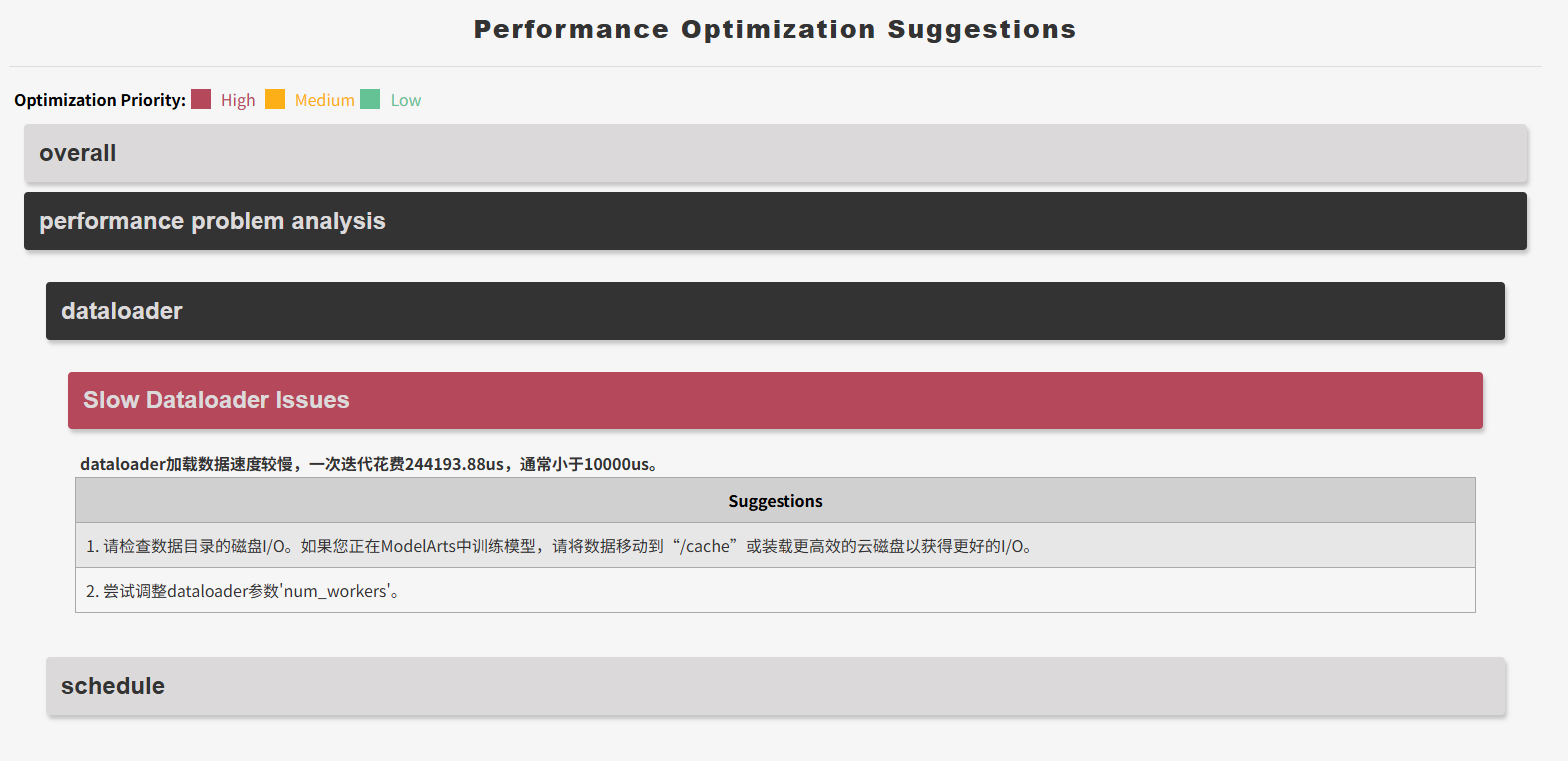
Figure 1 Example of an advisor analysis report
You are advised to view the report in the following order:
- View the overall conclusions: Check whether the report home page contains any performance bottlenecks marked as high priority.
- Analyze issue details: Carefully review the issue types, impact levels, and specific optimization suggestions in the issue list.
- Locate detailed data: To identify specific causes at the operator or API level, open
log/mstt_advisor_{timestamp}.xlsxand conduct an in-depth analysis based on the module names. - Perform tuning verification: Modify the training script, data loading logic, or communication configuration according to the suggestions, then collect profile data again and run
advisorto verify the optimization results.
Reference: For more information about analysis dimensions, parameter descriptions, and advanced interpretation techniques, see advisor.
You have now mastered the basic method for analyzing performance bottlenecks using msprof-analyze. This concludes the quick start tutorial. To dive deeper into its features and usage, see:
3. Solutions for Intranet Environments Without Public Network Access
3.1 Obtaining the Docker Image in an Isolated Intranet Environment
Solution 1: Configure a Docker proxy for direct pulling.
This solution applies to most Linux distributions and Docker versions ≥ 18.0, but compatibility is not guaranteed in all scenarios. If an exception occurs, adjust the configuration according to the actual environment.
Edit the Docker service proxy configuration file /etc/systemd/system/docker.service.d/http-proxy.conf. An example of the file content is as follows (replace the username, password, proxy address, and port based on your actual environment):
[Service]
Environment="HTTP_PROXY=http://username:password@proxy.example.com:8080"
Environment="HTTPS_PROXY=http://username:password@proxy.example.com:8080"
Environment="NO_PROXY=localhost,127.0.0.1,.example.com"
Reload and restart the Docker service:
You can then run docker pull normally.
Solution 2: Import the CANN image offline.
If the proxy solution is not feasible, first run Section 2.1.2 on the NPU server in the intranet and record the complete value of MY_STUDY_VAR_CANN_IMAGE. Then, run the following commands on an intermediate machine with public network access and the same CPU architecture, replacing the value in the first line with the recorded image address:
CANN_IMAGE='complete image address'
docker pull "${CANN_IMAGE}"
docker save -o cann.tar "${CANN_IMAGE}"
Transfer cann.tar to the intranet server using a USB flash drive or another method, and then run the following commands on the intranet server to load the image:
After the image is loaded, transfer the container startup script according to Section 3.2, and then return to Section 2.1.5 to start the container. If you have switched to a different host shell, rerun the command in Section 2.1.2 to restore the image environment variables.
3.2 Transferring the Container Startup Script
In a browser that can access the current webpage, enter the following URL to download the ctr_in.py script, and manually copy it to the ~/ directory on the intranet server:
After copying the file, run the following commands on the host of the intranet server:
After confirming that ctr_in.py exists and has execute permission, return to Section 2.1.5 to start the container.
3.3 Offline Installation of Python Dependencies and msprof-analyze
Prioritize using an intranet pip repository to install the dependencies. If no intranet pip repository is available, download the required installation packages in an intermediate environment that has public network access and the same CPU architecture and Python version as the NPU server in the intranet.
mkdir -p offline_wheels
python3 -m pip download xxx --dest offline_wheels # xxx is the name of the package to be downloaded
Transfer the offline_wheels directory to the intranet server and copy it to the user's home directory in the container. Then run the following command in the container:
pip3 install --no-index --find-links="${HOME}/offline_wheels" xxx # xxx is the name of the package to be installed
After installation is complete, return to Section 2.1.7 and run the verification command. There is no need to rerun the network-based installation commands.
4. Frequently Asked Questions (FAQ)
4.1 How Do I Re-enter the Container After Exiting?
Run either of the following commands on the host:
Method 1 (Recommended): Run ~/ctr_in.py to interactively select the target container. If there is only one container, the script automatically enters it.
Method 2 (Native command): Run docker exec -it <container_name> bash (replace <container_name> with the actual container name). To check the names of existing containers, first run docker ps -a.
4.2 What Should I Do If a permission denied Error Occurs When Running Docker Commands?
The current user may not have been added to the Docker user group. You can use root privileges to run the following command on the host:
After running the command, log in to the current user session again, or run newgrp docker to apply the group membership change immediately. Running routine operations as root is not recommended.